How to Create a Knowledge Base
If you need to create a Knowledge Base, you can do so by using the Snack Prompt API through the appropriate endpoint for creating elementals. To perform this action, you must be authenticated with your API Key.
Authenticating with Your API Key
To authenticate your API requests, include your API Key in the header:
x-api-key: YOUR_API_KEY
How to Generate an API Key
To generate an API Key, follow these steps:
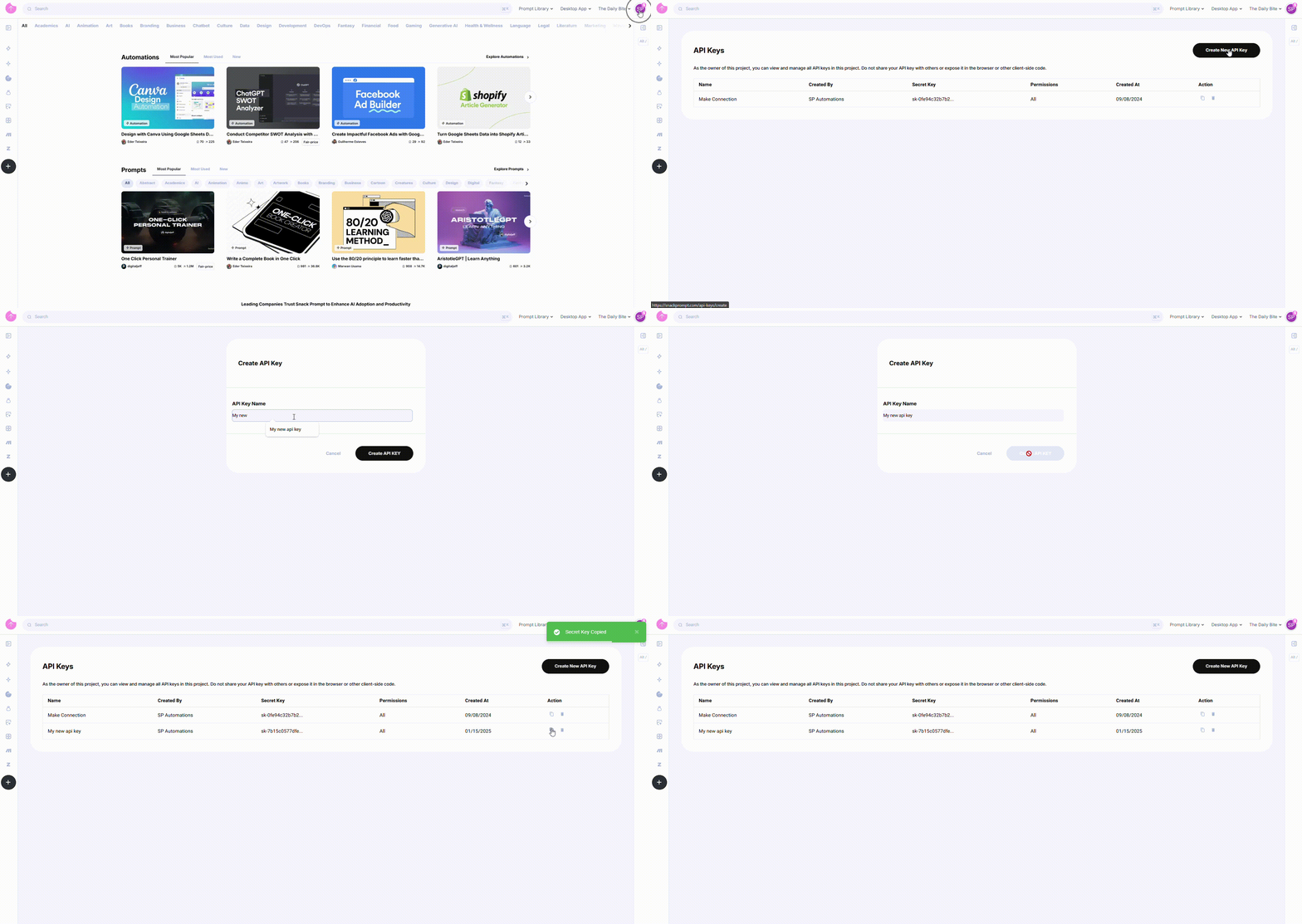
- Log in to your Snack Prompt account.
- Navigate to the API Keys page: https://snackprompt.com/api-keys.
- Click the Create New API Key button.
- Provide a name for your Key to easily identify it later.
- Once created, you can:
- Copy the Key for immediate use.
- Delete the Key when it's no longer needed.
Note: API Keys do not have an expiration date and will remain valid until deleted.
How to Create a Knowledge Base
To create a Knowledge Base, make a POST request to the /v1/user/elemental endpoint. For this example, I will create a Table type of Knowledge Base.
1. Make the POST API Request to create the Knowledge Base
Here's how to create the Knowledge Base:
Parameters and body content
- Body
- Response
Properties
| Name | Type | Required | Description |
|---|---|---|---|
| title | string | ❌ | Title of the elemental |
| template | string | ❌ | Template of the elemental |
| template_overwrite_content | boolean | ❌ | An option to overwrite the content |
| description | string | ❌ | Description of the elemental |
| command | string | ❌ | Command of the elemental |
| visibility | number | ❌ | Visibility of the elemental |
| category_id | number | ❌ | Category of the elemental |
| topic_ids | number[] | ❌ | Topics related to the elemental |
| lists_to_save | Object[] | ❌ | Lists to save |
| lists_to_save.list_id | number | ✅ | ID of the list |
| is_premium | boolean | ❌ | Indicates if the elemental is premium |
| is_fixed_price | boolean | ❌ | Indicates if the elemental has a fixed price |
| price | number | ❌ | Price of the elemental |
| price_original | number | ❌ | Original price of the elemental |
| avatar | Object | ❌ | Avatar of the elemental |
| avatar.file_name | string | ❌ | Name of the avatar |
| avatar.file_buffer | number[] | ✅ | Buffer of the avatar |
| cover_images | Object[] | ❌ | Cover images of the elemental |
| cover_images.file_name | string | ❌ | Name of the cover image |
| cover_images.file_buffer | number[] | ✅ | Buffer of the cover image |
| images | Object[] | ❌ | Images of the elemental |
| images.file_name | string | ❌ | Name of the image |
| images.file_buffer | number[] | ✅ | Buffer of the image |
| files | Object[] | ❌ | Files of the elemental |
| files.file_name | string | ❌ | Name of the file |
| files.file_buffer | number[] | ✅ | Buffer of the file |
| video_url | string | ❌ | Video URL of the elemental |
| tagIds | number[] | ❌ | Tag IDs of the elemental |
| tutorial_steps | Object[] | ❌ | Tutorial steps of the elemental |
| tutorial_steps.title | string | ✅ | Title of the tutorial step |
| tutorial_steps.description | string | ❌ | Description of the tutorial step |
| tutorial_steps.video_url | string | ❌ | Video URL of the tutorial step |
Example
{
  "title": "My First Table",
  "description": "<p>Snack Prompt is awesome!</p>",
  "type_id": 7
}
Properties
| Name | Type | Description |
|---|---|---|
| id | string | ID of the elemental |
| is_list | boolean | Indicates if the elemental is a list |
| type | Object | Type of the elemental |
| category | Object | Category of the elemental |
| category.id | number | ID of the category |
| category.name | string | Name of the category |
| topics | array | Topics related to the elemental |
| topics.id | number | ID of the topic |
| topics.name | string | Name of the topic |
| title | string | Title of the elemental |
| body_content | string | Body content of the elemental |
| body_content_plaintext | string | Body content of the elemental in plain text |
| body_content_json | string | Body content of the elemental in JSON format |
| body_content_placeholders | Object | Placeholders for the body content |
| body_content_placeholders.list | string[] | Placeholders for the body content in list |
| body_content_placeholders.plaintext | string | Placeholders for the body content in plain text |
| description | string | Description of the elemental |
| description_plaintext | string | Description of the elemental in plain text |
| visibility | Object | Visibility of the elemental |
| visibility.id | number | ID of the visibility |
| visibility.name | string | Name of the visibility |
| images | array | Images related to the elemental |
| images.id | number | ID of the image |
| images.url | string | URL of the image |
| cover_images | array | Cover images related to the elemental |
| cover_images.id | number | ID of the cover image |
| cover_images.url | string | URL of the cover image |
| avatar_image | string | Avatar image of the elemental |
| files | array | Files related to the elemental. (Up to 3 files) |
| files.id | number | ID of the file |
| files.name | string | Name of the file |
| files.size | number | Size of the file |
| files.created_at | string | Timestamp of when the file was created |
| files.url | string | URL of the file |
| tags | array | Tags related to the elemental |
| tutorial_steps | array | Tutorial steps related to the elemental |
| tutorial_steps.id | number | ID of the tutorial step |
| tutorial_steps.title | string | Title of the tutorial step |
| tutorial_steps.description | string | Description of the tutorial step |
| tutorial_steps.video_url | string | Video URL of the tutorial step |
| url | string | URL of the elemental |
| is_premium | boolean | Indicates if the elemental is premium |
| price | number | Price of the elemental |
| average_rate | number | Average rate of the elemental |
| video_url | string | Video URL of the elemental |
| created_at | string | Timestamp of when the elemental was created |
| updated_at | string | Timestamp of when the elemental was updated |
| user | Object | User owner of the elemental |
| user.id | string | ID of the user |
| user.name | string | Name of the user |
| user.username | string | Username of the user |
| user.avatar | string | Avatar of the user |
| total_upvotes | number | Total number of upvotes |
| total_uses | number | Total number of uses |
| total_saves | number | Total number of saves |
| command | string | Command of the elemental |
| compiled_fields | string | Compiled fields of the elemental |
Example
{
  "response": {
    "id": "82f9dc27-5e0c-4bbc-a9bb-3c2f1be8a2ac",
    "is_list": false,
    "type": {
      "id": 1,
      "name": "Prompt"
    },
    "category": {
      "id": 1,
      "name": "Text"
    },
    "topics": [
      {
        "id": 27,
        "name": "AI"
      }
    ],
    "title": "My First Prompt",
    "body_content": "I Love Snack Prompt ❤️ #[aweasome]",
    "body_content_plaintext": "I Love Snack Prompt ❤️ #[aweasome]",
    "body_content_json": null,
    "body_content_placeholders": {
      "list": [
        "#[aweasome]"
      ],
      "plaintext": "#[aweasome]"
    },
    "description": "<p>Snack Prompt is awesome!</p>",
    "description_plaintext": "Snack Prompt is awesome!",
    "visibility": {
      "id": 2,
      "name": "Unlisted"
    },
    "images": [
      {
        "id": 4156,
        "url": "http://..."
      }
    ],
    "cover_images": [
      {
        "id": 4155,
        "url": "http://..."
      }
    ],
    "avatar_image": "http://...",
    "files": [
      {
        "id": 1014,
        "name": "cat-code-lhY.png",
        "size": 1131291,
        "created_at": "2025-01-14T16:47:07.091668Z",
        "url": "https://..."
      }
    ],
    "tags": [
      {
        "id": 1,
        "title": "Tag 1",
        "color": "#000000",
        "description": "Tag 1 description"
      }
    ],
    "tutorial_steps": [
      {
        "id": 11645,
        "title": "First",
        "description": "<p>Follow us</p>",
        "video_url": ""
      },
      {
        "id": 11646,
        "title": "End",
        "description": "",
        "video_url": ""
      }
    ],
    "url": "https://snackprompt.com/prompt/my-first-prompt",
    "is_premium": false,
    "price": null,
    "average_rate": 0,
    "video_url": "https://www.youtube.com/watch?v=9yhGMj8Ygvc&t=1s",
    "created_at": "2025-01-14T16:47:01.565479Z",
    "updated_at": "2025-01-14T16:47:03.203537Z",
    "user": {
      "id": "Ak2o2WP6xrU8EqSLpmtwO4fEwlC3",
      "name": "Leonardo Sola",
      "username": "sola",
      "avatar": "http://..."
    },
    "total_upvotes": 0,
    "total_uses": 0,
    "total_saves": 1,
    "command": "",
    "knowledge_base": "Title: My First Prompt\nDescription: Snack Prompt is awesome!\n\nBody: I Love Snack Prompt ❤️ #[aweasome]\n\n"
  }
}
CURL Example
curl -X POST "https://api-integrations.snackprompt.com/v1/user/elemental" \
 -H "Content-Type: application/json" \
 -H "x-api-key: YOUR_API_KEY" \
 -d '{"title":"My First Table","description":"<p>Snack Prompt is awesome!</p>","type_id":7}'
Code Examples
You can also use the Snack Prompt API in different programming languages:
- JavaScript
- Python
- Go
const response = await fetch(
  "https://api-integrations.snackprompt.com/v1/elemental",
  {
    method: "POST",
    headers: {
      "Content-Type": "application/json",
      "x-api-key": "YOUR_API_KEY",
    },
    body: JSON.stringify({
      title: "My First Table",
      description: "<p>Snack Prompt is awesome!</p>",
      type_id: 7,
    }),
  }
);

if (response.ok) {
  console.log("Elemental updated successfully");
} else {
  console.error("Failed to update elemental");
}
import requests

url = 'https://api-integrations.snackprompt.com/v1/elemental'
headers = {
    'Content-Type': 'application/json',
    'x-api-key': 'YOUR_API_KEY'
}
data = {
    'title': 'My First Table',
    'description': '<p>Snack Prompt is awesome!</p>',
    'type_id': 7
}

response = requests.post(url, headers=headers, json=data)

if response.status_code == 200:
    print('Elemental updated successfully')
else:
    print('Failed to update elemental:', response.text)
package main

import (
  "bytes"
  "encoding/json"
  "fmt"
  "net/http"
)

func main() {
  url := "https://api-integrations.snackprompt.com/v1/elemental"

  data := map[string]interface{}{
    "title":       "My First Table",
    "description": "<p>Snack Prompt is awesome!</p>",
    "type_id":     7
  }
  payload, _ := json.Marshal(data)

  req, err := http.NewRequest("POST", url, bytes.NewBuffer(payload))
  if err != nil {
    fmt.Println("Error creating request:", err)
    return
  }

  req.Header.Set("Content-Type", "application/json")
  req.Header.Set("x-api-key", "YOUR_API_KEY")

  client := &http.Client{}
  resp, err := client.Do(req)
  if err != nil {
    fmt.Println("Error sending request:", err)
    return
  }
  defer resp.Body.Close()

  if resp.StatusCode == http.StatusOK {
    fmt.Println("Elemental updated successfully")
  } else {
    fmt.Printf("Failed to update elemental: %s\n", resp.Status)
  }
}
Practical Example
To better understand how the system works in practice, let's walk through a hands-on example where we'll create a Knowledge Base (Simple Database).
Suppose you want to register a new elemental that represents a basic data table. In this case, we'll simulate the creation of a table named "My First Table" with a short description to identify its purpose.
Here are the key details you'll need:
-
Title:
"My First Table" -
Description:
"Snack Prompt is awesome!" -
Type ID:
7(This value identifies the elemental as a table in the system)
To proceed with the creation, you'll typically send a request (such as via an API or system interface) including the data above. The type_id = 7 is crucial, as it informs the backend logic that this elemental should be treated and structured as a table within the platform.
Once created, this elemental will be available in your workspace, ready to receive new rows, columns, and entries as needed
This approach allows users to structure and store information flexibly while maintaining consistency and clarity in how different types of knowledge bases are handled.
{
  "title": "My First Table",
  "description": "<p>Snack Prompt is awesome!</p>",
  "type_id": 7
}
- CURL example:
curl -X POST "https://api-integrations.snackprompt.com/v1/user/elemental"\
  -H "Content-Type: application/json"
 -H "x-api-key: YOUR_API_KEY"
 -d '{"title":"My First Table","description":"Snack Prompt is awesome!"}'
For a visual example, I will use the Postman tool.
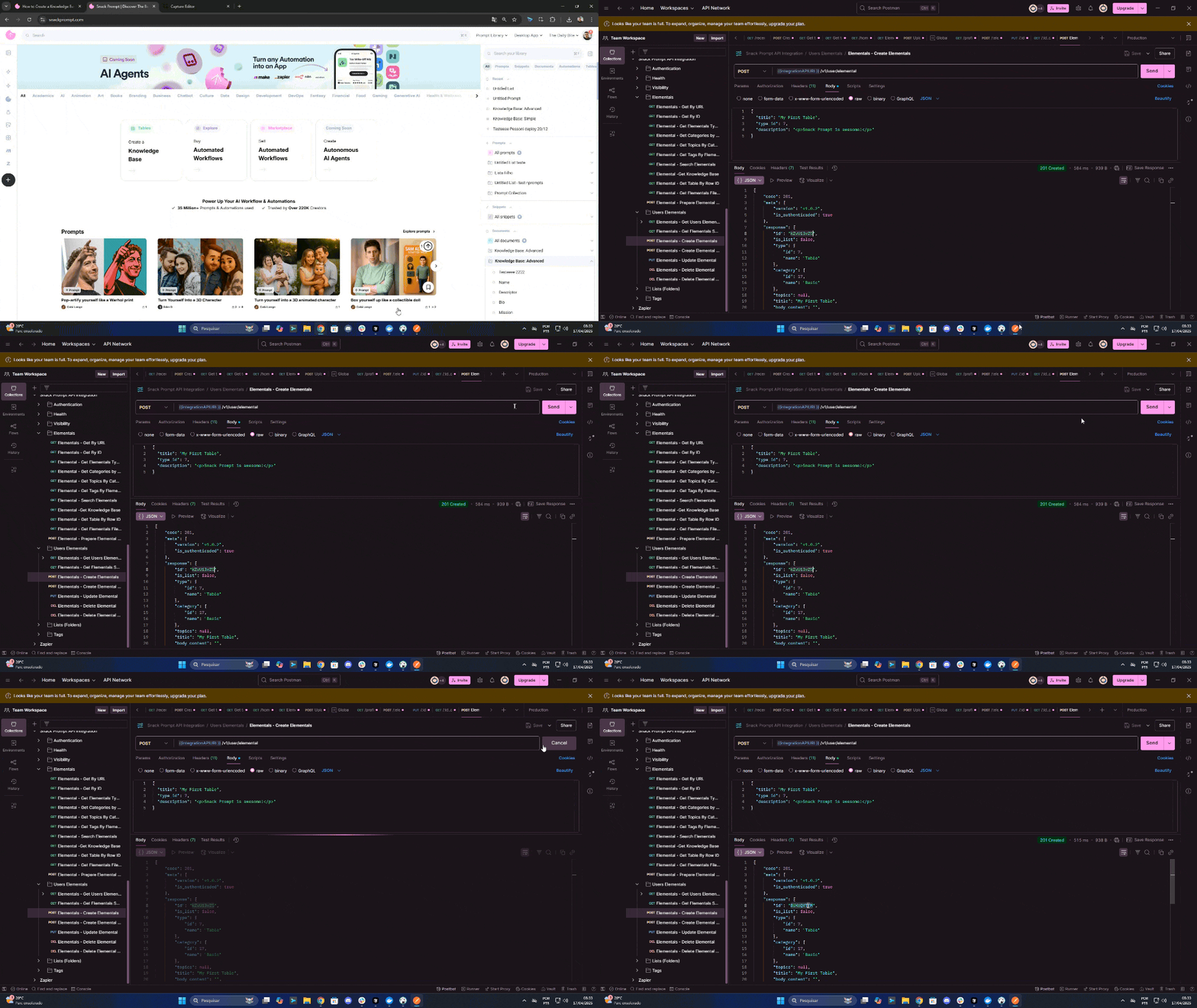
After creating the table, I will go to the Knowledge Base and see the changes. For this, I will acess the Snack Prompt website and go to the Knowledge Base section. https://snackprompt.com/table/id/edit. On the url, replace the id with the id of the table that you created.
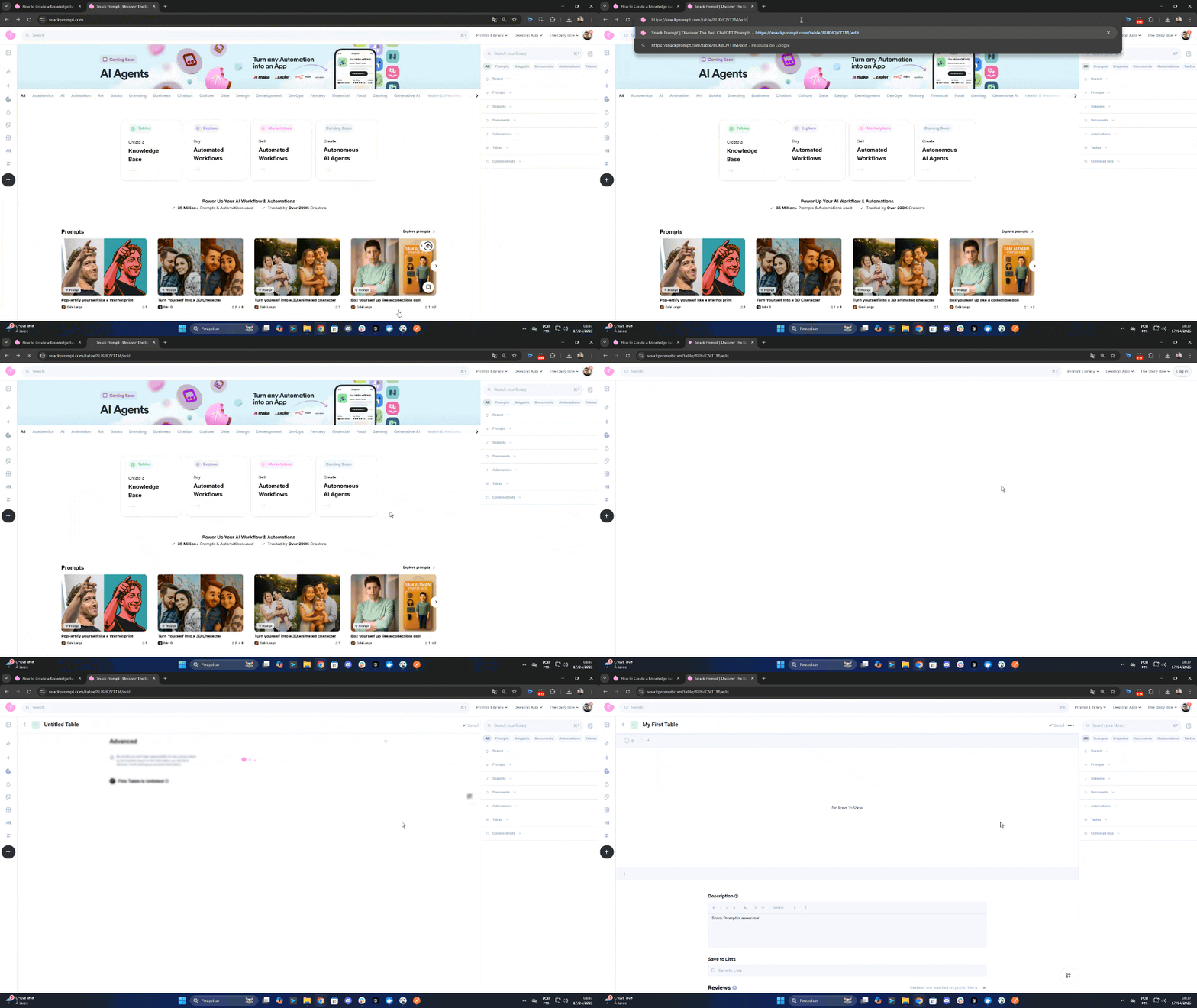
Now if i need to update the table, i can use the Snack Prompt API to update the cells, documents, etc. Click here to learn how to update a Knowledge Base.